Build RSS to Notion Knowledge Base with Make.com
Automate RSS archival to Notion using Make.com, OpenAI, PDF.co and Google Drive. Create a searchable second brain with AI translation and PDF backups.
Ready to automate?
Start building this workflow with Make.com — free forever on the starter plan.
Overview
This is a fully automated knowledge archival system designed for advanced users.
By connecting multiple tools, it transforms fragmented RSS subscriptions into a structured, searchable knowledge base:
- RSS Monitoring - Capture latest articles
- AI Processing - OpenAI translates titles and formats JSON
- Data Cleaning - Regex truncates title length
- Format Conversion - HTML to Notion-friendly Markdown
- PDF Generation - Web pages to PDF permanent backup
- Cloud Archival - Upload to Google Drive
- Knowledge Base - Create Notion entries
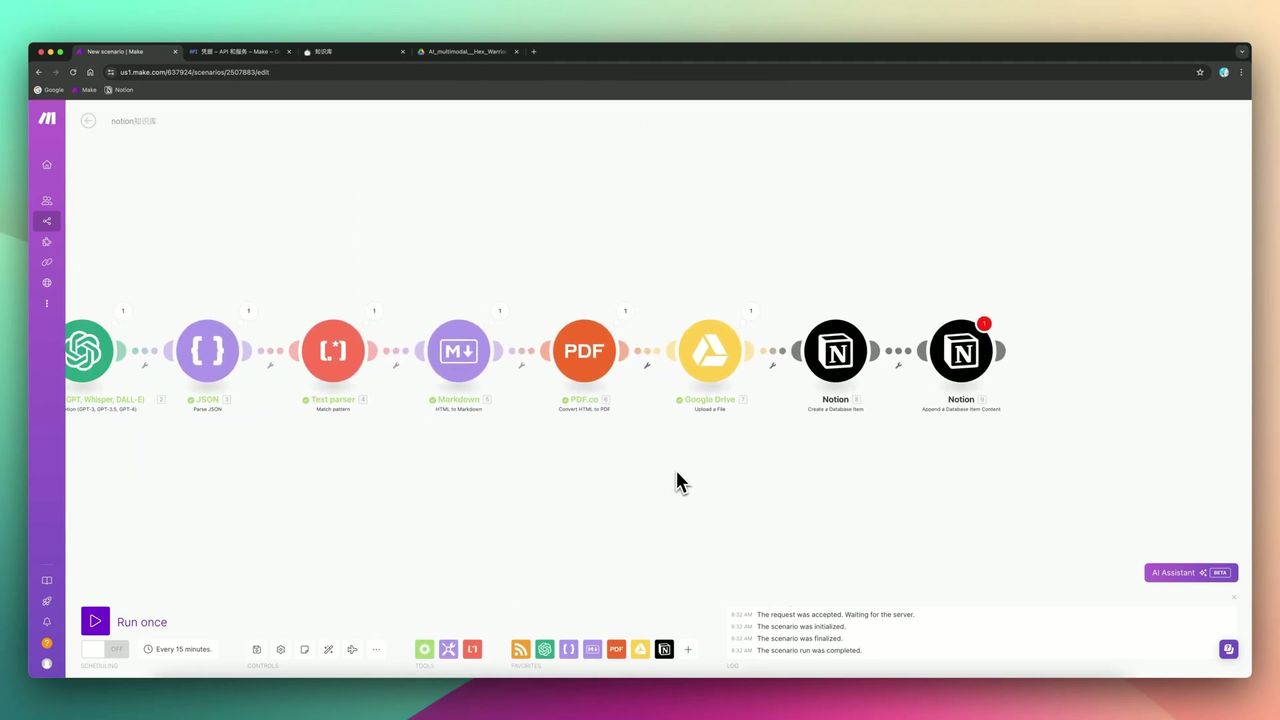 End-to-end automation from RSS to Notion
Core Decision Factors
When building a knowledge management automation system, consider:
- Configuration Complexity - Do you need to handle complex API authentication (like OAuth)?
- Integration Depth - Can it handle rich media and format conversion?
- Fault Tolerance - Will it crash when source data is missing or AI output is incorrect?
- Search Capability - Is archived content easy to search through?
- Operating Cost - Are API call costs proportional to time saved?
Technical Specifications
| Specification | Value | Notes |
|---|---|---|
| AI Engine | GPT-3.5 Turbo | For title translation and data cleaning |
| Token Limit | 1000 | Maximum consumption per run |
| PDF Engine | PDF.co | Web page to PDF conversion |
| Link Validity | 60 minutes | PDF.co temporary links |
| Notion Title Limit | ~100 characters | Recommend truncating to 90 characters |
| Storage Solution | Google Drive + Notion | Drive for PDFs, Notion for metadata |
Prerequisites
Before starting, ensure you have:
- Make.com account (free registration)
- OpenAI API key
- PDF.co account
- Google Cloud Platform account (for Drive API)
- Notion account and database
Notion Database Structure
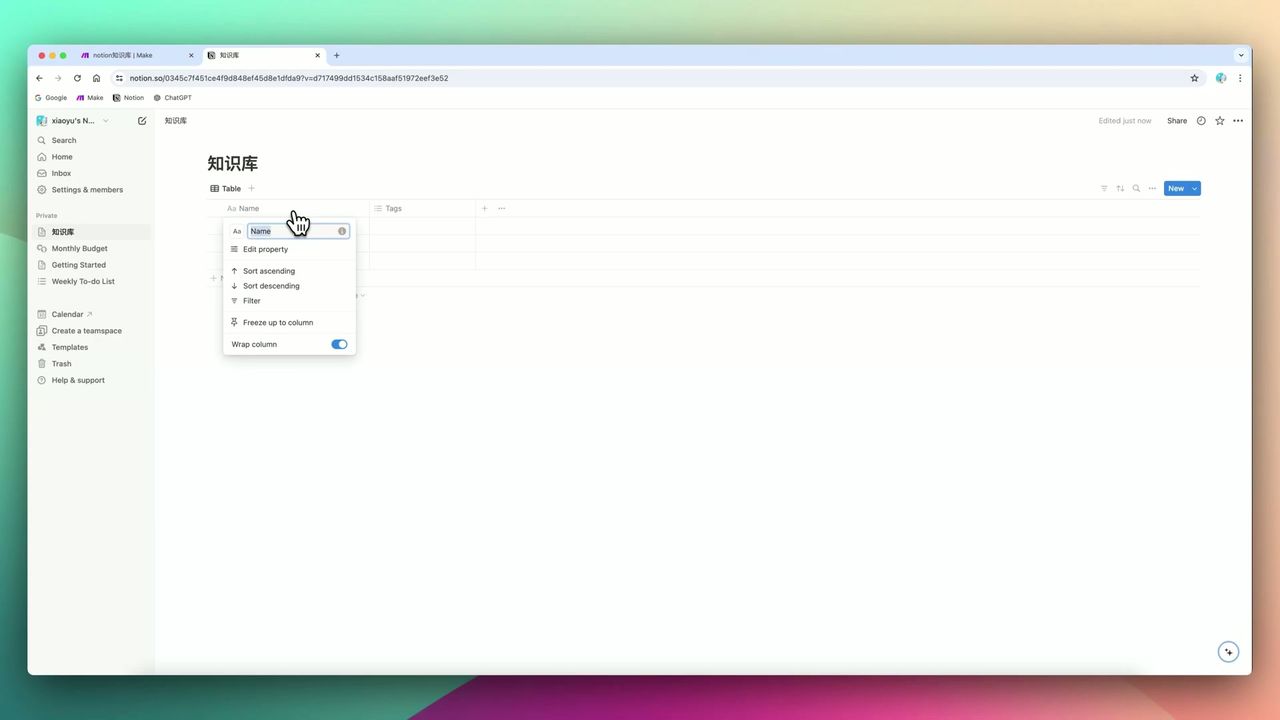 Database field setup
Create an RSS archival database with the following fields:
- Title (Title) - Article title (English)
- Original Link (URL) - RSS article link
- PDF Link (URL) - Google Drive backup link
- Published (Date) - Article publication date
- Created (Date) - Archival timestamp
Workflow Architecture
Stage 1: RSS Monitoring and AI Processing
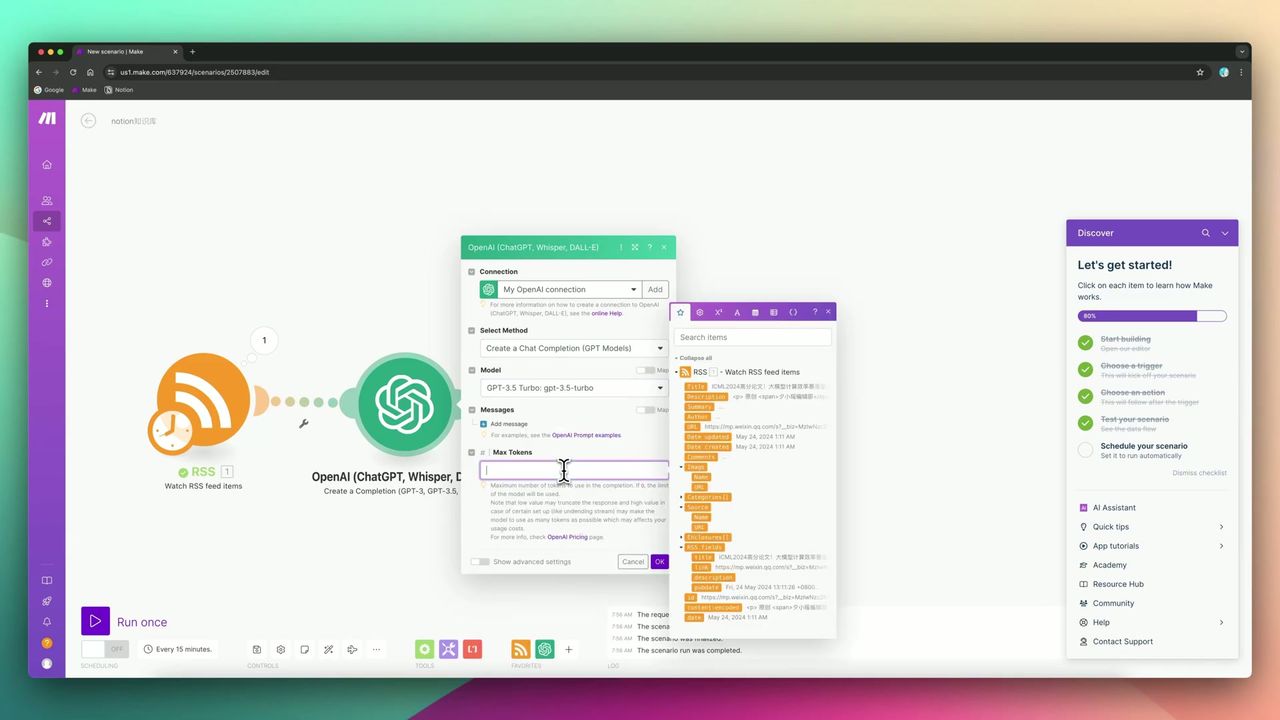 Prompt design for AI to output structured JSON
RSS Monitoring Configuration:
- Add RSS Watch module
- Configure subscription feed URL
- Set check frequency
OpenAI Processing:
- Translate titles to English (avoid filename encoding issues)
- Output formatted JSON structure
Prompt Example:
Please translate the following title to English and return in JSON format:
{"title": "translated English title"}

Original title: {{rss_title}}
Stage 2: Data Cleaning
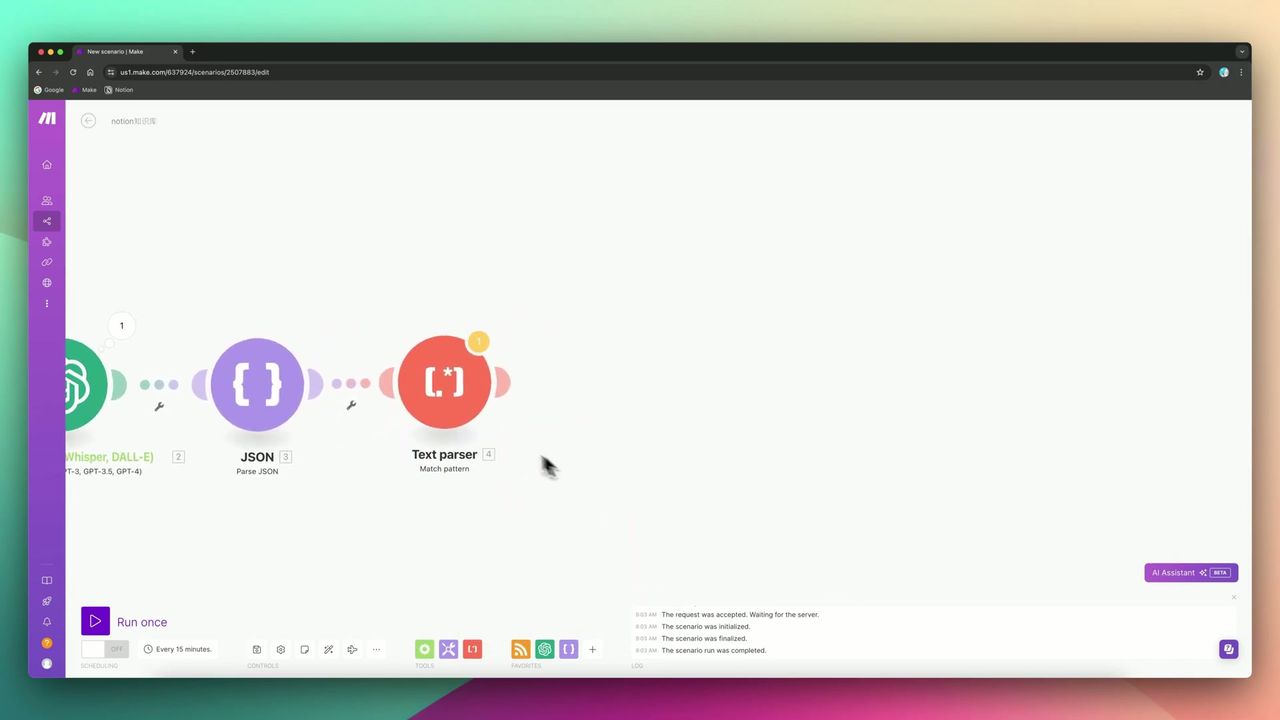 Using regex to truncate title to first 90 characters
Handle potential issues with AI output:
JSON Parsing:
- OpenAI output may not be standard JSON
- Sometimes adds extra commas or periods
- Requires JSON Parser module
Title Truncation:
- Notion title limit is approximately 100 characters
- Use regex to truncate to first 90 characters
- Avoid errors from overly long titles
Stage 3: Format Conversion
Convert HTML content to Markdown:
Why Convert?
- Markdown is Notion’s native format
- Conversion enables full-text search
- Preserves article structure and formatting
Considerations:
- Different RSS feeds have different structures
- Some have content in
description, others incontent - Need to check each source individually
Stage 4: PDF Generation and Cloud Archival
Use PDF.co to convert web pages to PDF:
Configuration Points:
- Input original article URL
- Obtain temporary PDF link
- Link valid for only 60 minutes
Google Drive Upload:
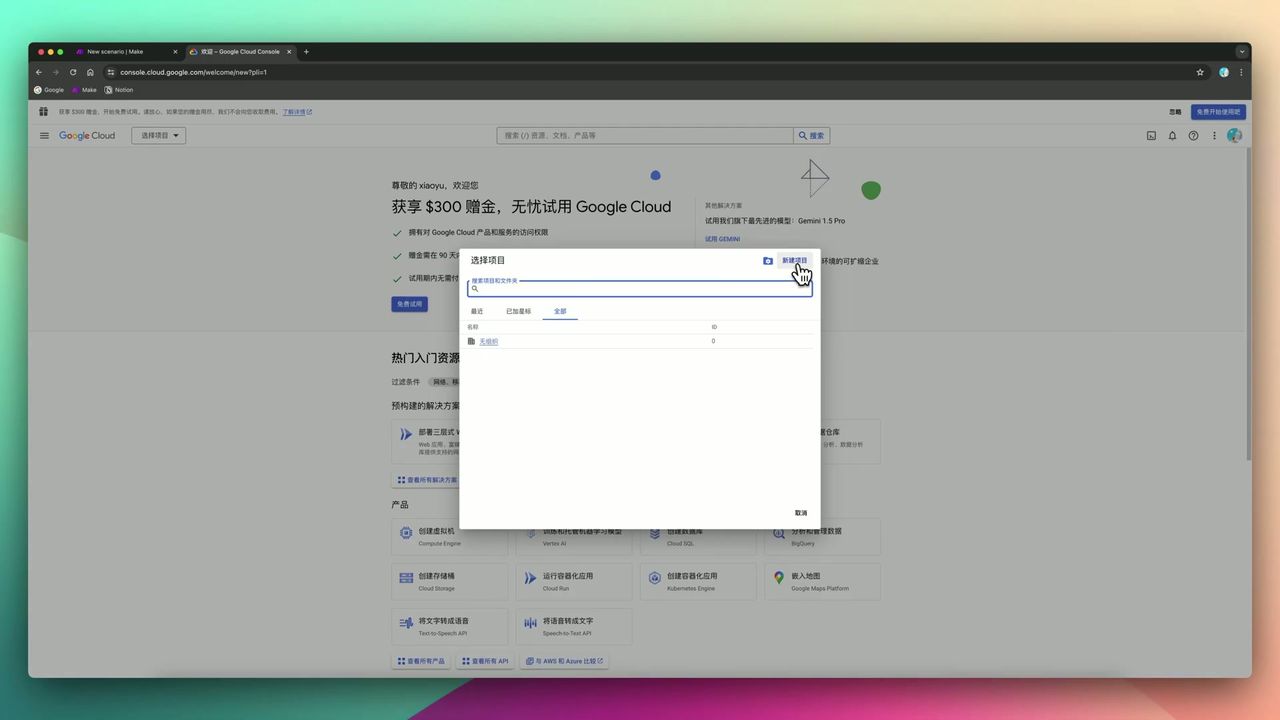 GCP project configuration interface
This is the most complex part of the entire workflow:
- Go to Google Cloud Platform
- Create a new project
- Configure OAuth consent screen
- Enable Drive API
- Generate Client ID and Secret
- Complete authorization in Make
Warning: This configuration process is the biggest barrier for non-technical users.
Stage 5: Notion Write
Write all data to Notion:
Content Written:
- Translated English title
- Original article link
- Google Drive PDF link
- Publication date
- Markdown body (appended to page)
Pitfalls to Avoid
Common issues during implementation:
-
Google Drive Configuration Complexity - Requires creating GCP project, configuring OAuth, enabling API - a tedious process
-
Notion Title Character Limit - Exceeding 100 characters causes errors, must use regex truncation
-
Unstable JSON Parsing - AI output format may have issues, need good error handling
-
Inconsistent RSS Feed Structure - Different feeds have fields in different locations, need to check each one
-
Short PDF Link Validity - Only 60 minutes, must promptly upload to Drive
Use Cases
Recommended For
- Information Collectors/Researchers - Need permanent archival of massive industry updates
- Heavy Notion Users - Want to centrally manage all reading materials
- Make.com Learners - Excellent intermediate to advanced practice project
May Not Suit
- Casual news readers (traditional RSS readers like Feedly offer better experience)
- Complete beginners (GCP configuration is extremely tedious)
- Cost-sensitive users (API calls accumulate costs)
FAQ
Why convert HTML to Markdown?
Converting to Markdown makes content native to Notion, enabling full-text search within Notion and dramatically improving retrieval efficiency.
Is Google Drive configuration complex?
Yes, it requires creating a project in Google Cloud Platform, configuring OAuth, and enabling Drive API. This is the highest technical barrier in the entire workflow.
Does Notion have title character limits?
Yes, approximately 100 characters. If AI-translated titles exceed this, errors occur. Use regex to truncate to the first 90 characters.
Do PDF links expire?
Yes, PDF.co generates links valid for only 60 minutes. You must promptly upload to Google Drive for permanent storage.
Next Steps
After mastering the basics, you can try:
- Add more RSS subscription feeds
- Integrate AI summarization functionality
- Add automatic tag categorization
- Set up email notifications for important articles
Feel free to leave comments with questions!
FAQ
- Why convert HTML to Markdown?
- Converting to Markdown makes content native to Notion, enabling full-text search within Notion and dramatically improving retrieval efficiency.
- Is Google Drive configuration complex?
- Yes, it requires creating a project in Google Cloud Platform, configuring OAuth, and enabling Drive API. This is the highest technical barrier in the entire workflow.
- Does Notion have title character limits?
- Yes, approximately 100 characters. If AI-translated titles exceed this, errors occur. Use regex to truncate to the first 90 characters.
- Do PDF links expire?
- Yes, PDF.co generates links valid for only 60 minutes. You must promptly upload to Google Drive for permanent storage.
Start Building Your Automation Today
Join 500,000+ users automating their work with Make.com. No coding required, free to start.
Get Started FreeRelated Tutorials
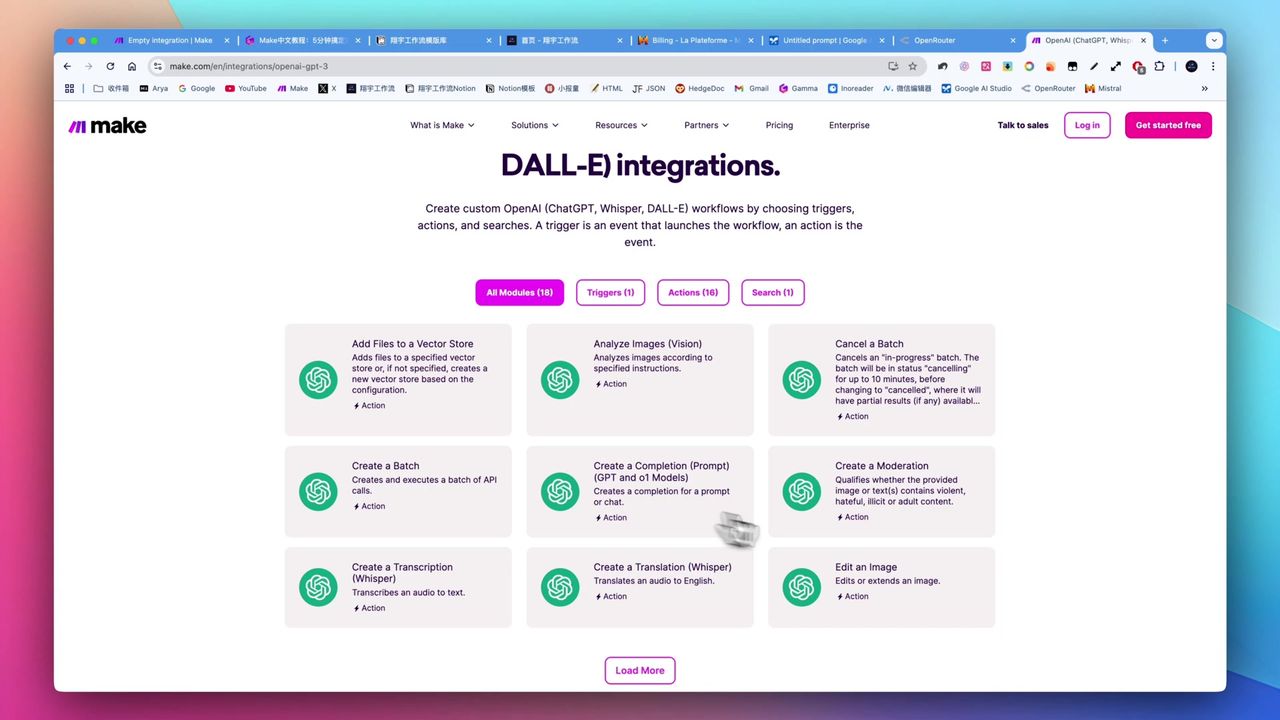
Make.com Tutorial: Build Your First Workflow in 5 Minutes
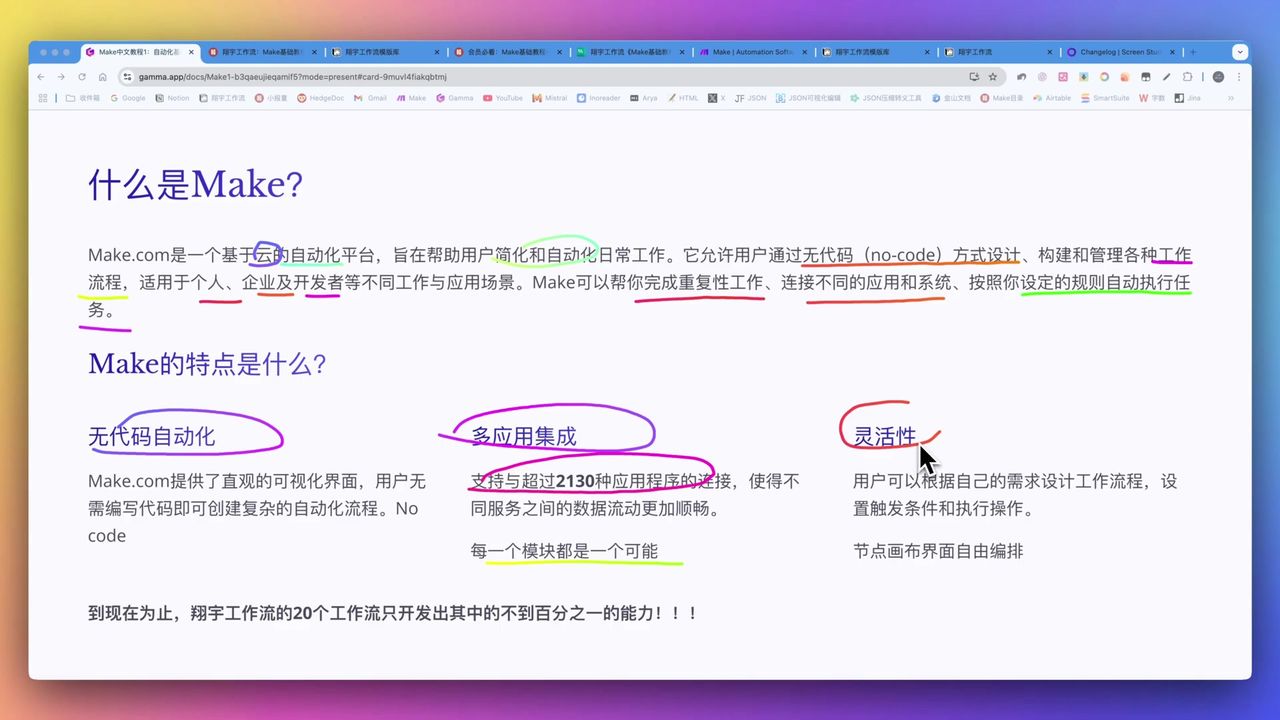
Make.com Core Concepts: Automation Fundamentals Explained
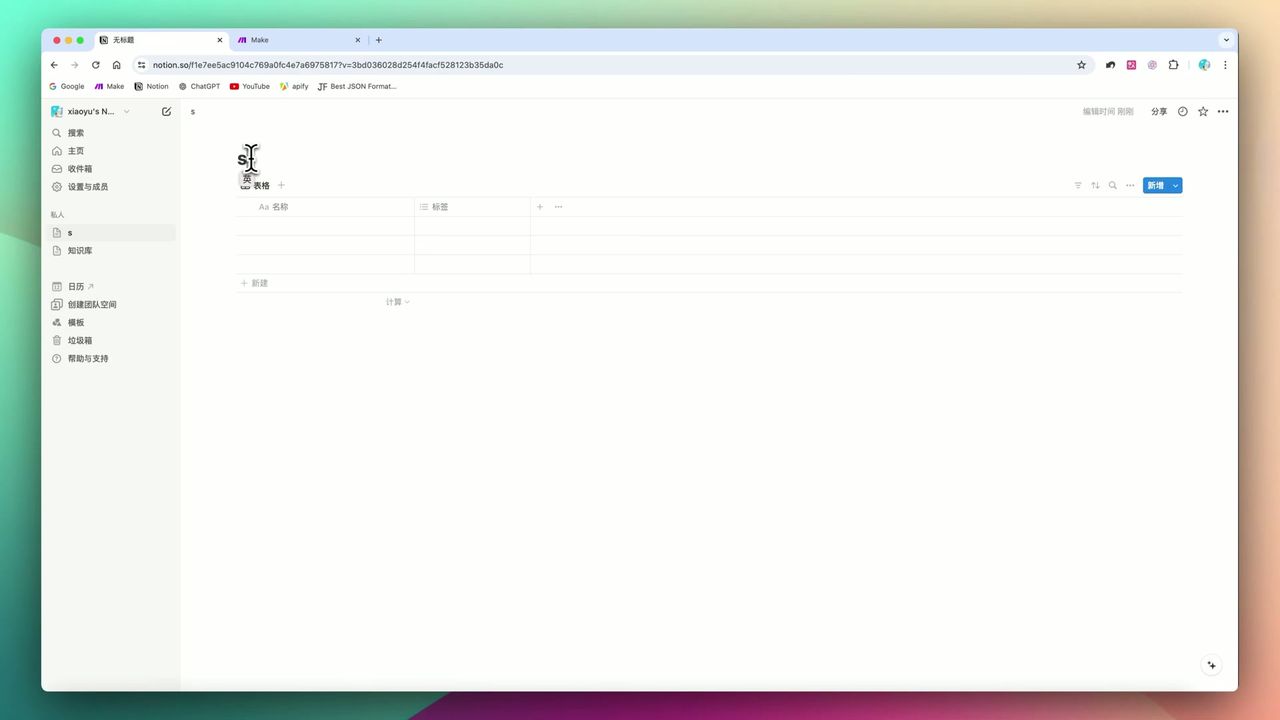
Build YouTube Data Archive in Notion with Make.com & Apify
Auto-Classify Notion with AI Using Make.com
About the author
Alex Chen
Automation Expert & Technical Writer
Alex Chen is a certified Make.com expert with 5+ years of experience building enterprise automation solutions. Former software engineer at tech startups, now dedicated to helping businesses leverage AI and no-code tools for efficiency.
Credentials