Make Tutorial: Automatically Sync Gmail Emails to Notion Database
Learn how to build an automation workflow with Make.com that uses OpenAI to extract email summaries and archive them to Notion—no coding required.
Blueprint
Import this blueprint into Make.com to recreate the automation.
{
  "name": "Gmail to Notion with AI Summary",
  "flow": [
    {
      "id": 1,
      "module": "gmail:watchEmails",
      "version": 2,
      "parameters": {...
Ready to automate?
Start building this workflow with Make.com — free forever on the starter plan.
Overview
Tired of manually organizing emails? Important messages getting lost in your inbox? Copying and pasting into your note-taking app?
This tutorial will teach you to create a fully automated workflow that:
- Monitors your Gmail inbox automatically
- Extracts key content using AI summarization
- Archives everything to your Notion database
Once set up, you’ll never manually organize emails again!
Prerequisites
Before starting, make sure you have:
- ✅ Make.com account (free to sign up)
- ✅ Gmail / Google Workspace account
- ✅ Notion account with a database
- ✅ OpenAI API key (optional, for AI summaries)
Step 1: Create a Make.com Scenario
- Log in to Make.com
- Click Create a new scenario
- You’ll see a blank canvas—this is where we build our automation
💡 Tip: Make.com’s free plan includes 1,000 operations per month—plenty for personal use!
Step 2: Add the Gmail Trigger
The Gmail module serves as our trigger—whenever a new email arrives, the automation kicks in.
- Click the + button in the center of the canvas
- Search for and select Gmail
- Choose the Watch Emails trigger
- Connect your Google account (authorize on first use)
- Configure filter settings:
- Folder: INBOX
- Label: Optional, to filter specific labeled emails
{
  "folder": "INBOX",
  "criteria": {
    "from": "@important-sender.com"
  }
}
Step 3: Add OpenAI Module (Optional)
This step lets AI automatically summarize your emails, saving you time reading long messages.
- Click the + after the Gmail module
- Search for OpenAI and add it
- Select Create a Chat Completion
- Configure:
- Model:
gpt-3.5-turbo(best value) - Messages:
Summarize the following email in 2-3 sentences:

{{1.body}}
- Model:
⚠️ Note: Skip this step if you don’t need AI summaries—just store the original email in Notion.
Step 4: Add the Notion Module
Finally, we’ll store the email information in your Notion database.
- Add a Notion module
- Select Create a Database Item
- Connect your Notion account
- Choose your target database
- Map the fields:
| Notion Property | Mapped Value |
|---|---|
| Title | {{1.subject}} |
| From | {{1.from.email}} |
| Date | {{1.date}} |
| Summary | {{2.choices[0].message.content}} |
| Status | ”To Process” |
Step 5: Test and Activate
- Click the Run once button at the bottom left
- Send a test email to your Gmail
- Check if a new entry appeared in your Notion database
- If everything works, click the ON switch to activate the scenario
🎉 Congratulations! Your email automation system is now running!
Download the Blueprint
Want to import this scenario quickly? Download our Blueprint file and import it directly into Make.com:
{/* Blueprint download component will be inserted here */}
Frequently Asked Questions
Is Make.com free to use?
Make.com offers a free plan with 1,000 operations per month, which is enough for personal use and getting started.
Do I need programming knowledge?
Not at all! Make.com is a visual no-code platform. This tutorial guides you through every step.
Can I filter which emails get synced?
Yes! You can filter by sender, subject keywords, labels, and more.
Next Steps
Now that you’ve learned this basic workflow, try:
- Adding conditional logic to categorize emails by type
- Integrating Slack for notifications
- Using advanced AI models for deeper analysis
Questions? Leave a comment below!
FAQ
- Is Make.com free to use?
- Make.com offers a free plan with 1,000 operations per month, which is enough for personal use and getting started.
- Do I need programming knowledge?
- Not at all! Make.com is a visual no-code platform. This tutorial guides you through every step.
- Can I filter which emails get synced?
- Yes! You can filter by sender, subject keywords, labels, and more.
Start Building Your Automation Today
Join 500,000+ users automating their work with Make.com. No coding required, free to start.
Get Started FreeRelated Tutorials
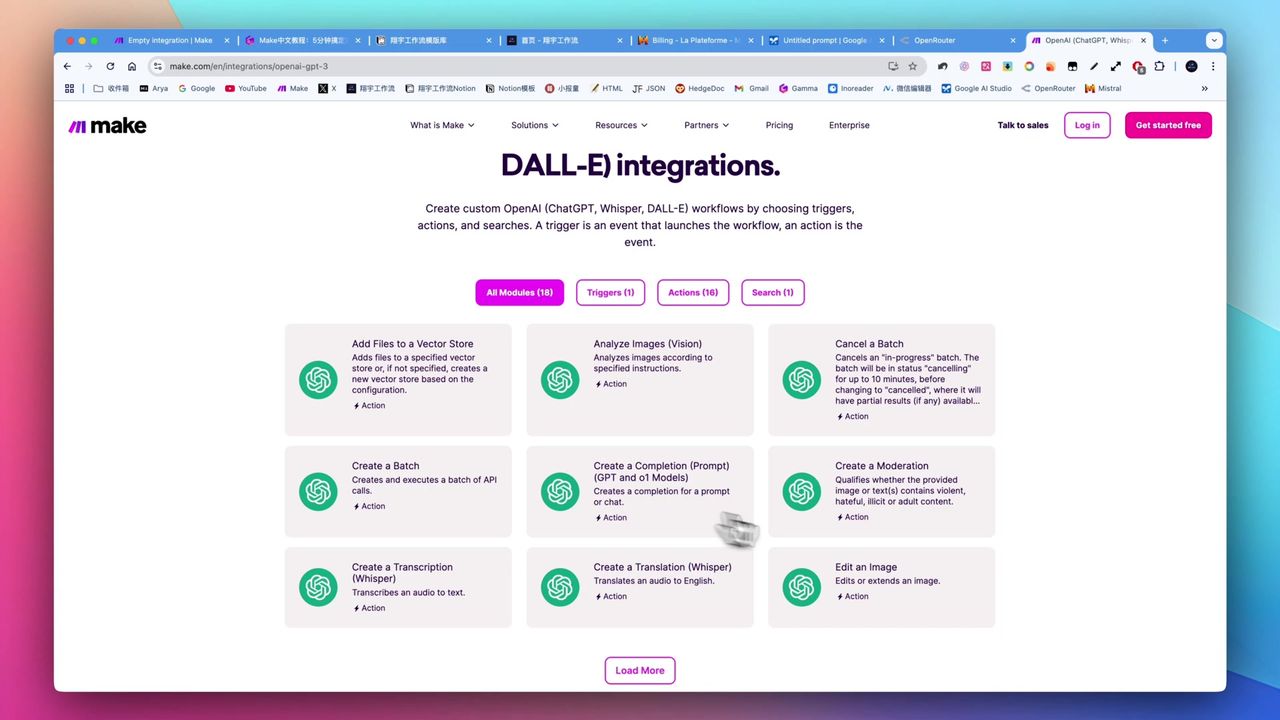
Make.com Tutorial: Build Your First Workflow in 5 Minutes
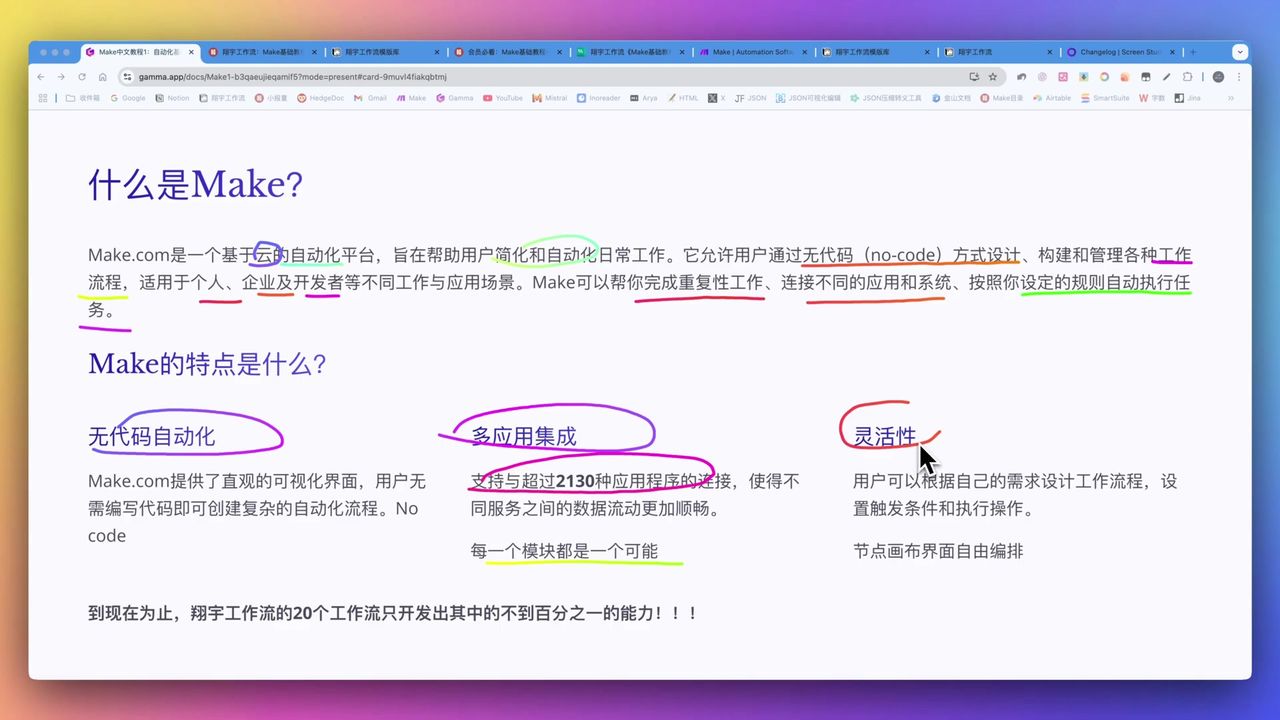
Make.com Core Concepts: Automation Fundamentals Explained
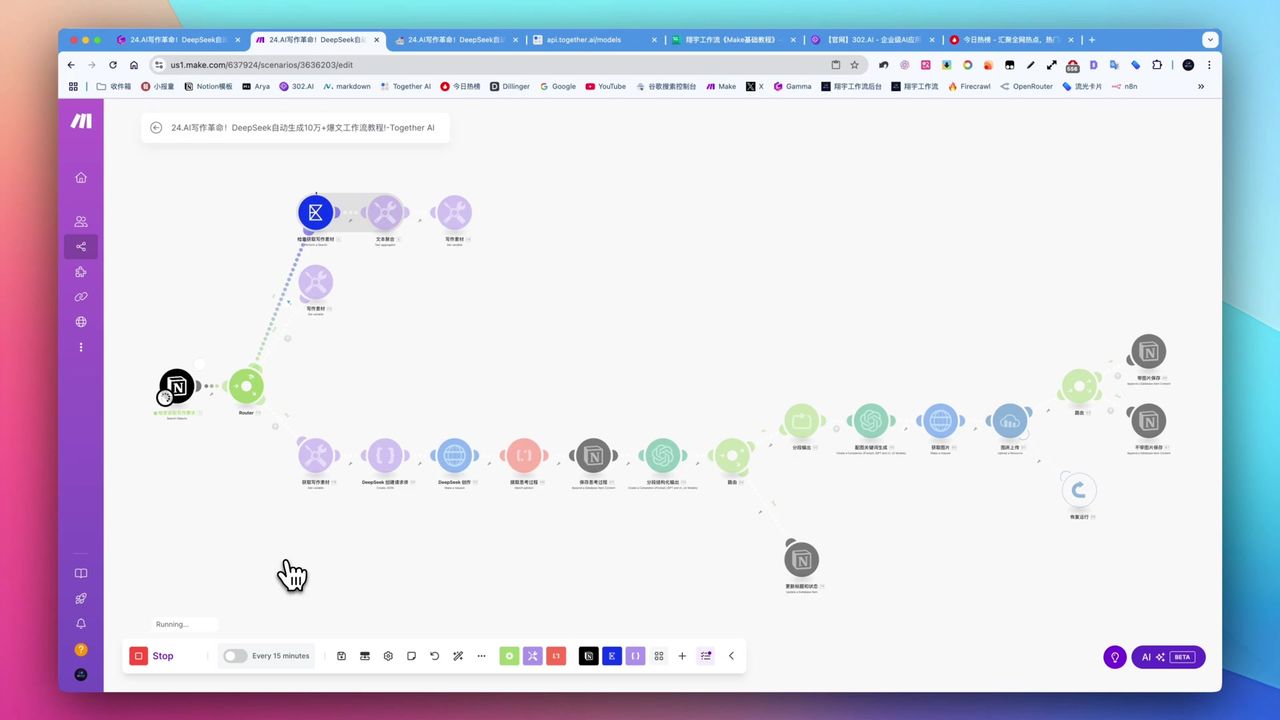
Create Viral Content with Make.com & DeepSeek AI
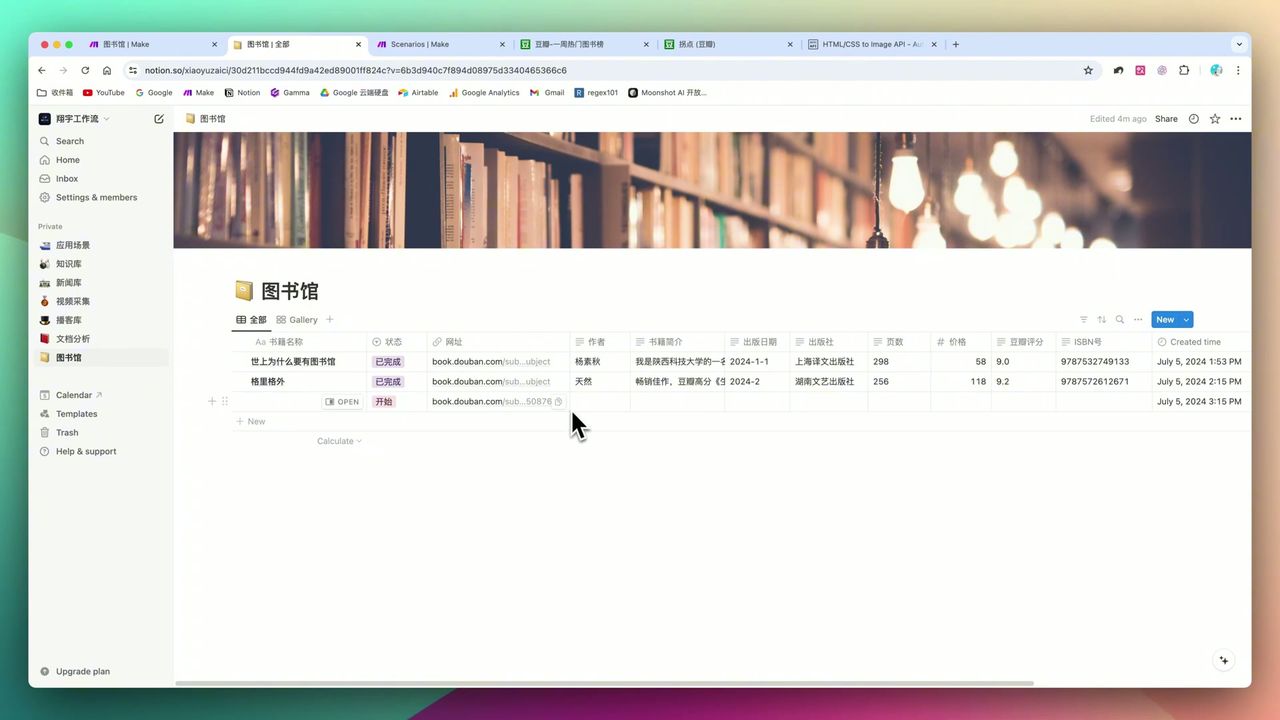
Build Notion Book Library with Make.com & GPT-4o Vision
About the author
Alex Chen
Automation Expert & Technical Writer
Alex Chen is a certified Make.com expert with 5+ years of experience building enterprise automation solutions. Former software engineer at tech startups, now dedicated to helping businesses leverage AI and no-code tools for efficiency.
Credentials